
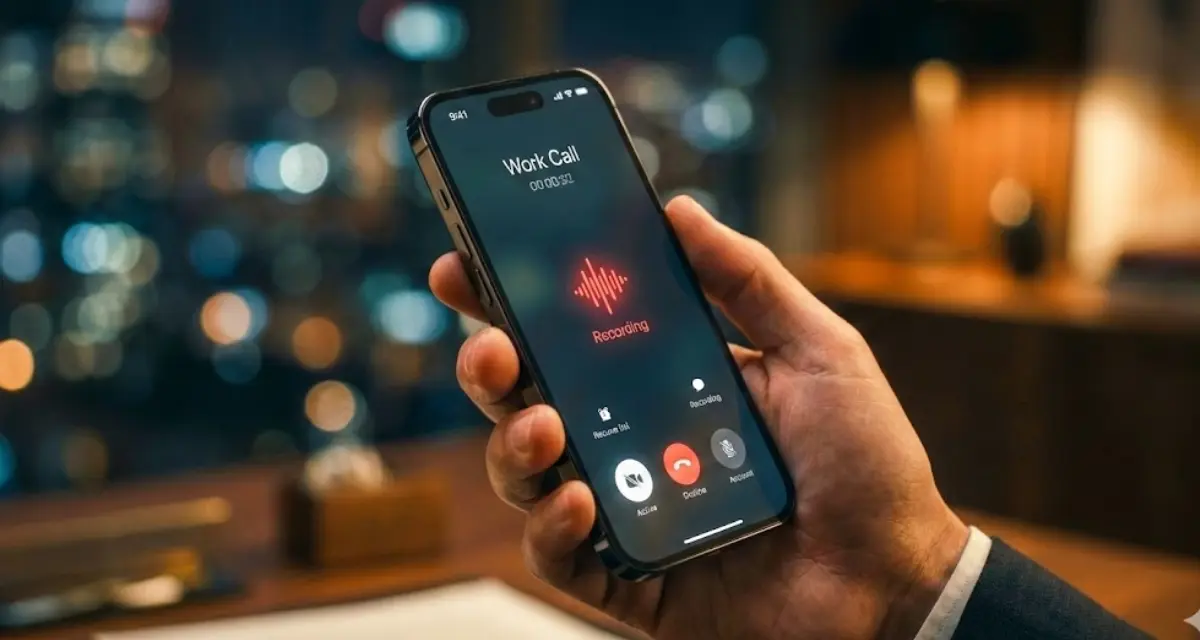
Record phone calls on iPhone easily and safely in 2026. Apple doesn’t include a native call recording feature in most regions due to privacy laws. Whether it’s for work interviews, customer calls, or personal conversations, there are reliable ways to record calls. This guide covers both built-in iOS options and external methods, making it easy for all iPhone users to capture important calls.
Check the Legal Requirements First
Before recording any call, it’s crucial to understand your local laws. Many regions require all parties’ consent before a conversation can be legally recorded. Recording a call without permission can lead to legal issues. Always make sure you are compliant with your country’s regulations. Using shady third-party apps can also risk privacy, so it’s better to stick to trusted methods. Staying legal ensures you avoid fines and protects the privacy of everyone involved.
Use Built-In Call Recording in iOS 18 and Later
Apple has introduced a built-in call recording feature in iOS 18.1, but it is limited to newer iPhones like the iPhone 15 Pro and 15 Pro Max and is region-specific. This method is convenient because it keeps everything in one place and informs all parties about the recording.
To use this feature, start or answer a phone call and tap the record button on the screen. The feature automatically announces that the call is being recorded. All recordings are saved in the Notes app, under “Call Recordings.” This method works for one-on-one calls and ensures compliance with most privacy laws.
Record Calls Using an External Recorder
If your iPhone or region does not support built-in recording, an external recorder is the best alternative. You can use a digital voice recorder, another smartphone, or a computer. Simply put your iPhone on speaker mode and start recording with the external device.
Although this method is more basic, it works on any iPhone and iOS version. Make sure to test your setup before important calls and always inform the other party to stay legal. Using a quiet environment improves audio quality, making your recordings clear and reliable.
Tips for High-Quality Call Recordings
Recording clear phone calls requires some planning. Use speaker mode when recording externally, minimize background noise, and ensure your device has enough storage. Always backup recordings immediately after the call to avoid losing important files. Testing your setup beforehand helps you catch any issues before critical conversations. Following these tips ensures professional-quality audio every time.
Avoid Unreliable Call Recording Apps
Many call recording apps available on the App Store claim to work on iPhone, but most have hidden costs, poor audio quality, or privacy risks. Some apps route calls through their servers, which can compromise security. It’s better to rely on Apple’s built-in tools or a trusted external recorder to ensure reliability, safety, and legal compliance.
Frequently Asked Questions
Can I record WhatsApp or FaceTime calls?
Apple’s built-in recorder only works for standard phone calls and FaceTime Audio calls, and an announcement plays for legal reasons. Silent recording is not supported.
Can I record group calls?
Built-in call recording works for one-on-one calls. For group calls, an external recorder is necessary.
Where are recordings saved?
iOS recordings appear in the Notes app → Call Recordings. External recordings are saved wherever your device stores audio files.
Recording phone calls on an iPhone has become easier with iOS 18+ built-in tools, while external recording remains a reliable option for older models. Always follow legal rules, inform all participants, and use the right setup for the clearest audio. By following this guide, you can safely record calls for interviews, work, or personal reference without any hassle.

